





Activate eSIM on your iPhone or iPad
Follow these simple steps to set up and activate your eSIM using a QR code on your iPhone or iPad.
eSIM set-up and activation on iPhone using QR code (example: iPhone 16e)
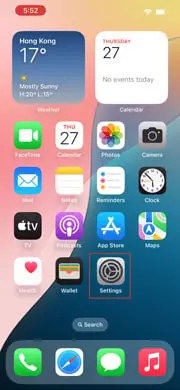
1. Select “Settings” for internet connection through cellular or Wi-Fi
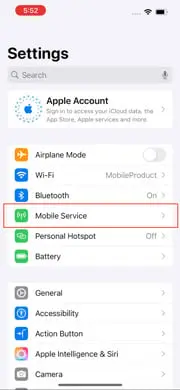
2. Select “Mobile Service”
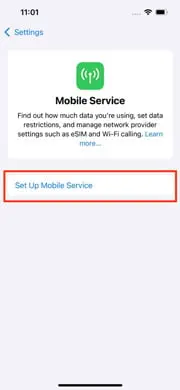
3. Tap “Sep Up Mobile Service”
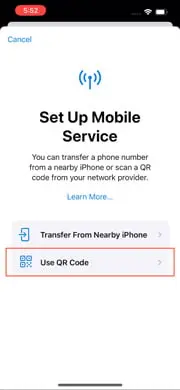
4. Select “Use QR Code”
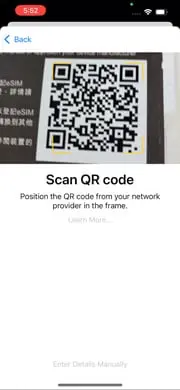
5. Scan the QR code from eSIM Voucher to register
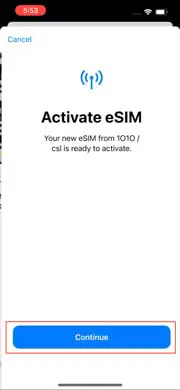
6. Tap “Continue”
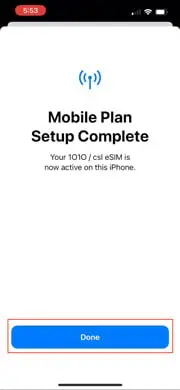
7. Tap “Done”
於iPhone 使用 QR code 設定和啟動 eSIM 方法
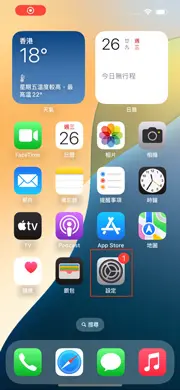
1. 點選 〝設定〞以透過流動數據或Wi-Fi 設定eSIM
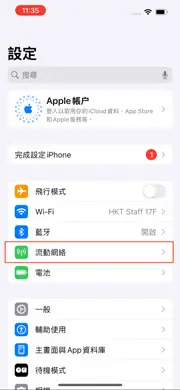
2. 點選 〝流動網絡〞
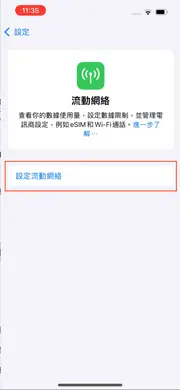
3. 點選 〝設定流動網絡〞
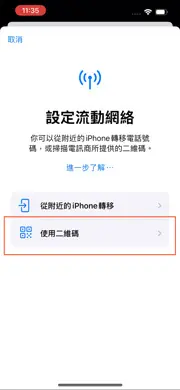
4. 點選 〝使用二維碼〞
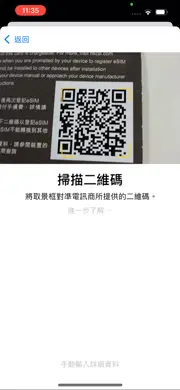
5. 將攝像鏡頭掃瞄電訊商提供的QR code
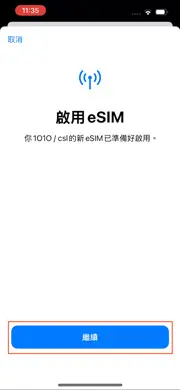
6. 點選 〝繼續〞
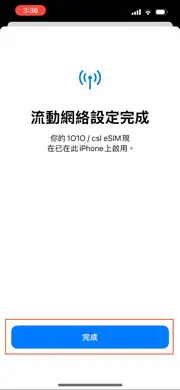
7. 點選 〝完成〞
Click here to learn how to activate iPad eSIM
Easily transfer your existing number to eSIM using an iPhone or iPad
Frequently Asked Questions
An eSIM is a SIM card that is embedded in a mobile device. Without the traditional chip, eSIM can be used to make/receive a call, or access the internet.
An iPhone can store eight or more eSIM numbers.
When you convert to an eSIM, you're simply transitioning from a physical SIM card to an eSIM on your current device. On the other hand, transferring an eSIM involves moving either your physical SIM card or existing eSIM to an eSIM on a new device.
You must be a customer with designated 1O1O, csl or Club SIM service. However, csl or Club Sim prepaid card customers and commercial customers subscribed to selected business solutions are not eligible.
All security features on the device should be enabled. Follow these steps:
- Log into iCloud on the iPhone (for both devices involved in the process).
- Activate Apple ID's Two-Factor Authentication.
- Enable Face ID or passcode lock.
- Register for iMessage.
Yes, it is essential for the current phone to stay close to the new phone during the eSIM transfer process. Once you have connected both devices to a strong and stable Wi-Fi network, keep the current phone within 1 meter of the new phone throughout the transfer. This proximity ensures a smooth and successful transaction.
No, you cannot use it. The system will deactivate the original SIM card immediately upon successful download of the eSIM to your new device.
No, your contacts will not be transferred automatically. It is recommended that you import your contacts from the SIM card to your phone's address book and back up the data on iCloud for safekeeping.
No, if you wish to revert back to a Physical SIM card, you will need to contact any 1O1O Center / csl AI Store for assistance.
A standard handling fee of HK$40 applies each time you replace a physical SIM card or an eSIM through any channel, but the fee is waived for 1O1O customers.
eSIM Terms & Conditions
1. eSIM is a digital and embedded SIM offered by CSL Mobile Limited (“CSL” or “we”) that enables activation of a mobile service plan (“Service Plan”) without a physical SIM card.
2. To use the eSIM, you must be a 1O1O, csl or Club Sim monthly service plan customers (“Customers”) and use a device that supports eSIM functionality. Commercial customers subscribed to selected business solutions are not eligible for the Apple eSIM Quick Transfer service.
3. eSIM is available through the following channels:
a. Walk-in to any csl AI Store or 1O1O Center to apply for eSIM. Upon successful application, you will be provided with an eSIM Activation Kit. The eSIM Activation Kit contains a unique QR Code which is only valid for one time scan.
b. Self-initiated request through your eSIM supported iPhone or iPad (“Apple Device”) running iOS/iPadOS 18.6.2 or newer by Apple eSIM Quick Transfer service (“the Service”) enables you to convert a physical SIM card to an eSIM on same Apple Device or transfer an existing physical SIM card or eSIM from one Apple Device to another. For details, please https://1010.com.hk/esim_transfer or https://www.hkcsl.com/en/esim/quick-transfer.
4. Subject to clause 3a, you must have an eSIM-compatible device to activate the eSIM installation through the eSIM Activation Kit. CSL reserves the right to only support a list of designated eSIM-compatible devices, subject to change at any time. For the latest update, please visit https://www.1010.com.hk/esim or https://www.hkcsl.com/en/esim/.
5. For the purpose of clause 3b, you must have compatible Apple Devices as listed below in order to enjoy the Service. CSL reserves the right to revise the below list of compatible Apple Devices at any time without prior notice. For the latest update, please visit please visit https://1010.com.hk/esim_transfer or https://www.hkcsl.com/en/esim/quick-transfer.
iPhone
- iPhone SE (3rd generation or later model)
- iPhone 12 mini or iPhone 13 mini
- iPhone 16e or later model
- iPhone Air or later model
- iPhone17 Series or later model
- iPhone Duo or later model
iPad
- iPad Pro 12.9-inch (4th generation or later model)
- iPad Pro 11-inch (2nd generation or later model)
- iPad Air (4th generation or later model)
- iPad (10th generation or later model)
- iPad mini (6th generation or later model)
6. The use of eSIM may require transfer of your data (including personal data), which may include without limitation, your mobile phone number, integrated circuit card identifier/SIM card number (“ICCID”), embedded identity document number (“EID”) to the provider of your eSIM compatible device (including but not limited to Apple). The use and retention of your data by the provider of your eSIM compatible device is subject to third party privacy policies.
7. Customers must ensure that their compatible eSIM devices are connected to a network (either Wi-Fi or mobile data) in order to download and use the eSIM service.
8. We may charge you HK$40 per eSIM replacement as prescribed by us, if it is damaged due to misuse, negligence or willful damage on your part. You must contact us to arrange for your mobile service to be suspended if your eSIM, device or mobile equipment has been lost or stolen.
9. You are responsible for all charges connected with the lost or stolen mobile equipment, equipment and/or eSIM until we disconnect all mobile services to the lost or stolen mobile equipment, equipment and/or eSIM, following your report of the loss or theft in accordance with clause 8, but you are still required to pay all monthly charges.
10. You agree that an acceptable use policy applies to some mobile services and you must use the mobile service in a fair manner. We will consider use of the mobile service as unfair if you or a third party uses the mobile service in any way which:
a. is designed to exploit, or results in the exploitation of, an acceptable usage limit of the relevant mobile service (as determined by us from time to time) or
b. causes or results in loss to us, problems to the network or affects the storage capacity of another customer.
In such an event, we may reduce your usage to a level determined by us and/or charge you in accordance with the prevailing thereafter rate of the relevant mobile service or suspend or terminate the relevant mobile service immediately.
11. eSIM is subject to the Mobile Service Agreement of CSL Mobile Limited, please visit https://www.1010.com.hk/terms_and_conditions or https://www.hkcsl.com/en/mobile-service-agreement-consumer-customers/.
12. CSL may change these Terms & Conditions at any time without notice. All matters and disputes will be subject to CSL’s final determination.
13. If there is any inconsistency between the Chinese and English versions of these terms and conditions, the English version shall prevail.
Other Wearables One Number Service (the Service) Terms & Conditions
- To use the Service you must have an eligible csl / 1O1O mobile service plan (“Service Plan”), a compatible “Device”, and a compatible Android 5.0 or newer mobile phone with 1.5GB RAM or above and iPhone which is iPhone 5 with iOS 9.0 or newer.
- Data usage of the Service will be deducted from the Service Plan of your Service Plan.
- You can make or receive calls from the Device using the mobile number of your Service Plan.
- You can only use the Service with one Device at a time. If you want to connect to another Device, you can connect your Device to the Service via “1O1O” / “csl” app on your mobile phone. Alternatively, you can purchase an additional Service to use with the new Device on your mobile phone.
- You can purchase up to a maximum of one Service under the same mobile number.
- The Service does not support international roaming.
- If you terminate the Service Plan of your mobile phone, you are required to terminate the Service of your Device by calling our customer service.
- The Service is subject to the Mobile Service Agreement of CSL Mobile Limited, please visit www.hkcsl.com/en/mobile-service-agreement-consumer-customers/.
- If there is any inconsistency between the Chinese and English versions of these terms and conditions, the English version shall prevail.
eSIM 條款及細則
1. eSIM 是由 CSL Mobile Limited(“CSL” 或 “我們”)提供的數碼化嵌入式 SIM卡,能夠在不需要實體 SIM 卡的情況下啟動月費服務計劃(“服務計劃”)。
2. 使用本服務,閣下必須是 1O1O、csl 或 Club Sim 之月費服務計劃的客戶(”客戶”),並需使用支援 eSIM 功能的裝置。已訂購部分商用方案的商業客戶則不符合資格使用Apple 快速轉移 eSIM服務。
3. eSIM 可透過以下方式獲取:
a. 直接前往任何 1O1O Center或csl AI Store申請 eSIM。成功申請後,閣下將獲得一個 eSIM 啟動套裝。該eSIM啟動套裝包含一個獨有的二維碼,僅可掃描一次。
b. 透過支援 eSIM 的 iPhone 或 iPad(“Apple 裝置”),客戶可以自行發起請求,使用運行 iOS/iPadOS 18.6.2 或更高版本的 Apple 快速轉移eSIM服務 (“本服務”)。本服務使閣下能夠在同一 Apple 裝置上將實體 SIM 卡轉換為 eSIM,或將現有的實體 SIM 卡或 eSIM 從一部 Apple 裝置遷移至另一部。有關本服務詳情,請瀏覽https://1010.com.hk/tc/esim_transfer 或 https://www.hkcsl.com/tc/esim/quick-transfer 。
4. 根據第3a條款,透過eSIM啟動套裝安裝eSIM時,必須擁有兼容的eSIM裝置,CSL 有權隨時更新支援的 eSIM 兼容裝置名單。如需最新資訊,請瀏覽
https://www.1010.com.hk/tc/esim 或 https://www.hkcsl.com/tc/esim/ 。
5. 根據第3b條款,你必須擁有以下所列的兼容Apple裝置才能享有本服務,CSL保留隨時在不事先通知的情況下修訂以下兼容Apple 裝置列表權利。 如需最新資訊,請瀏覽 https://1010.com.hk/tc/esim_transfer 或 https://www.hkcsl.com/tc/esim/quick-transfer 。
iPhone
- iPhone SE(第三代或更新型號)
- iPhone 12 mini或iPhone 13 mini
- iPhone 16e或更新型號
- iPhone Air 或更新型號
- iPhone17 系列或更新型號
- iPhone Duo 或更新型號
iPad
- iPad Pro 12.9吋(第四代或更新型號)
- iPad Pro 11吋(第二代或更新型號)
- iPad Air(第四代或更新型號)
- iPad(第十代更新型號)
- iPad mini(第六代或更新型號)
6. 使用 eSIM 可能需要轉移閣下的資料(包括個人資料),這些資料可能包括但不限於閣下的手機號碼、集成電路卡識別碼/SIM 卡號碼(“ICCID”)、嵌入式身份證明文件號碼(“EID”),轉移至閣下所使用的 eSIM 兼容設備的供應商(包括但不限於 Apple)。該供應商對閣下資料的使用及保存受第三方隱私政策約束。
7. 客戶需確保其兼容的eSIM裝置已連接至網絡(無論是Wi-Fi或流動數據),以便能夠下載及使用eSIM服務。
8. 我們可就因閣下誤用、疏忽或蓄意破壞而引致eSIM損毀時向閣下收取我們不時定立的港幣$40更換eSIM費用。如閣下的eSIM或流動通訊設備或器材遺失或被盜,須通知我們安排暫停流動通訊服務。
9. 直至閣下按第8條款報告遺失及被竊情況後,以及我們對遺失或被竊的流動通訊設備及/或eSIM或器材的所有流動通訊服務暫停為止,閣下須支付與遺失或被竊的流動通訊設備及/或eSIM或器材有關的所有費用。然而,閣下仍需繳付所有月費。
10. 閣下同意可接受的使用政策適用於部分流動通訊服務。閣下必須以公平方式使用流動通訊服務。如閣下或第三者使用流動通訊服務時有任何下列情況出現,我們會認為閣下不公平使用流動通訊服務:
a. 有意超出或導致超出有關流動通訊服務的可接受使用量(由我們不時釐定)或
b. 造成或導致我們蒙受損失、網絡產生問題或影響另一位客戶之儲存容量。 如有上述情況,我們可以合理的方式管理流動通訊服務的使用及/或根據有關流動通訊服務的現行其後收費向閣下收取費用。
11. 本服務受CSL流動通訊服務協議條款及細則所約束,詳情請瀏覽https://www.1010.com.hk/tc/terms_and_conditions 或https://www.hkcsl.com/tc/mobile-service-agreement-consumer-customers/ 。
12. CSL有權更改本條款及細則,而不作事先通知。如有任何爭議,CSL保留最終決定權。
13. 若中英文本之本條款及細則有任何差異,則以英文本為準。
其他穿戴裝置 One Number 服務(本服務)條款及細則
• 若要使用本服務,你必須登記使用指定 1O1O / csl 流動通訊服務計劃(“服務計劃”)、支援的裝置、支援 Android 5.0 或以上及隨機存取記憶體(RAM)超過 1.5GB, iOS 9.0 或以上,以及 iPhone 5 或更新型號的智能電話。
• 本服務的數據使用量將於有關服務計劃中扣除。
• 你可以以登記之手機號碼,透過裝置撥打或接聽來電。
• 每個服務只能使用一個裝置。如你想連接到其他裝置,可透過智能電話上的 "1O1O" / "csl" 應用程式把裝置連接到服務。
• 你最多可在同一手機號碼下登記最多 1 個服務。
• 本服務並不支援漫遊。
• 如你終止服務計劃,必需同時致電我們的客戶服務熱線終止本服務。
• 本服務受 CSL Mobile Limited 流動通訊服務協議條款及細則所約束,詳情請瀏覽 https://www.hkcsl.com/tc/mobile-service-agreement-consumer-customers/ 。
• 若中英文本之本條款及細則有任何差異,則以英文本為準。
eSIM 条款及细则
1.eSIM 是由 CSL Mobile Limited(“CSL”或 “我们”)提供的数字化嵌入式 SIM卡,能够在不需要实体 SIM 卡的情况下启动月费服务计划(“服务计划”)。
2.使用本服务,阁下必须是 1O1O、csl 或 Club Sim之月费服务计划的客户(”客户”),并需使用支持 eSIM 功能的装置。已订购部分商用方案的商业客户则不符合资格使用Apple 快速转移 eSIM 服务。
3.eSIM 可透过以下方式获取:
a. 直接前往任何 1O1O Center或csl AI Store申请 eSIM。成功申请后,阁下将获得一个 eSIM 启动套装。该eSIM启动套装包含一个独有的二维码,仅可扫描一次。
b. 透过支持 eSIM 的 iPhone 或 iPad(“Apple 装置”),客户可以自行发起请求,使用运行 iOS/iPadOS 18.6.2 或更高版本的 Apple 快速转移eSIM服务 (“本服务”)。本服务使阁下能够在同一 Apple 装置上将实体 SIM卡转换为 eSIM,或将现有的实体 SIM 卡或 eSIM 从一部 Apple 装置迁移至另一部。有关本服务详情,请浏览 https://1010.com.hk/tc/esim_transfer 或 https://www.hkcsl.com/tc/esim/quick-transfer 。
4.根据第3a条款,透过eSIM启动套装安装eSIM时,必须拥有兼容的eSIM装置,CSL 有权随时更新支持的 eSIM 兼容装置名单。如需最新资讯,请浏览 https://1010.com.hk/tc/esim 或 https://www.hkcsl.com/tc/esim/ 。
5.根据第3b条款,你必须拥有以下所列的兼容Apple装置才能享有本服务,CSL保留随时在不事先通知的情况下修订以下兼容Apple装置列表权利。 如需最新资讯,请浏览 https://1010.com.hk/tc/esim_transfer 或 https://www.hkcsl.com/tc/esim/quick-transfer 。
iPhone
iPhone SE(第三代或更新型号)
- iPhone 12 mini或iPhone 13 mini
- iPhone 16e或更新型号
- iPhone Air 或更新型号
- iPhone 17 系列或更新型号
- iPhone Duo 或更新型号
iPad
- iPad Pro 12.9吋(第四代或更新型号)
- iPad Pro 11吋(第二代或更新型号)
- iPad Air(第四代或更新型号)
- iPad(第十代或更新型号)
- iPad mini(第六代或更新型号)
6.使用 eSIM 可能需要转移阁下的资料(包括个人资料),这些资料可能包括但不限于阁下的手机号码、集成电路卡识别码/SIM卡号码(“ICCID”)、嵌入式身份证明文件号码(“EID”),转移至阁下所使用的 eSIM 兼容设备的供应商(包括但不限于 Apple)。该供应商对阁下资料的使用及保存受第三方隐私政策约束。
7.客户需确保其兼容的eSIM装置已连接至网络(无论是Wi-Fi或流动数据),以便能够下载及使用eSIM服务。
8.我们可就因阁下误用、疏忽或蓄意破坏而引致eSIM损毁时向阁下收取我们不时定立的港币$40更换eSIM费用。如阁下的eSIM或流动通讯设备或器材遗失或被盗,须通知我们安排暂停流动通讯服务。
9.直至阁下按第8条款报告遗失及被窃情况后,以及我们对遗失或被窃的流动通讯设备及/或eSIM或器材的所有流动通讯服务暂停为止,阁下须支付与遗失或被窃的流动通讯设备及/或eSIM或器材有关的所有费用。然而,阁下仍需缴付所有月费。
10. 阁下同意可接受的使用政策适用于部分流动通讯服务。阁下必须以公平方式使用流动通讯服务。如阁下或第三者使用流动通讯服务时有任何下列情况出现,我们会认为阁下不公平使用流动通讯服务:
a. 有意超出或导致超出有关流动通讯服务的可接受使用量(由我们不时厘定)或
b. 造成或导致我们蒙受损失、网络产生问题或影响另一位客户之储存容量。 如有上述情况,我们可以合理的方式管理流动通讯服务的使用及/或根据有关流动通讯服务的现行其后收费向阁下收取费用。
11.本服务受CSL流动通讯服务协议条款及细则所约束,详情请浏览https://1010.com.hk/tc/terms_and_conditions 或 https://www.hkcsl.com/tc/mobile-service-agreement-consumer-customers/ 。
12.CSL有权更改本条款及细则,而不作事先通知。如有任何争议,CSL保留最终决定权。
13.若中英文本之本条款及细则有任何差异,则以英文本为准。
其他穿戴设备 One Number 服务(本服务)条款及细则
• 若要使用本服务,你必须登记使用指定 1O1O / csl 流动通讯服务计划(“服务计划”)、支持的设备、支持 Android 5.0 或以上及随机存取内存(RAM)超过 1.5GB、iOS 9.0 或以上,以及 iPhone 5 或更新型号的智能电话。
• 本服务的数据使用量将于有关服务计划中扣除。
• 你可以以登记之手机号码,通过设备拨打或接听来电。
• 每个服务只能使用一个设备。如你想连接到其他设备,可通过智能电话上的“1O1O”/“csl”应用程序把设备连接到服务。
• 你最多可在同一手机号码下登记最多 1 个服务。
• 本服务并不支持漫游。
• 如你终止服务计划,必须同时致电我们的客户服务热线终止本服务。
• 本服务受 CSL Mobile Limited 流动通讯服务协议条款及细则所约束,详情请浏览 www.hkcsl.com/tc/mobile-service-agreement-consumer-customers/。
• 若中英文本之本条款及细则有任何差异,则以英文本为准。