





Experience Effortless Connectivity with eSIM Quick Transfer!
Unlock unparalleled connectivity with eSIM Quick Transfer service for iPhones and iPads! This innovative solution makes it simple to migrate your physical SIM card or eSIM from an old device to a new one, or convert your existing physical SIM into an eSIM on same device—all at your fingertips.
Quick Transfer is specifically optimized for seamless transitions between similar devices—iPhone to iPhone or iPad to iPad—ensuring you stay connected effortlessly. Say goodbye to complicated setups and hello to instant connectivity!
eSIM Quick Transfer Tutorial
Experience effortless connectivity with the eSIM Quick Transfer feature on supported devices.
How to Convert Physical SIM to eSIM on the Same Device
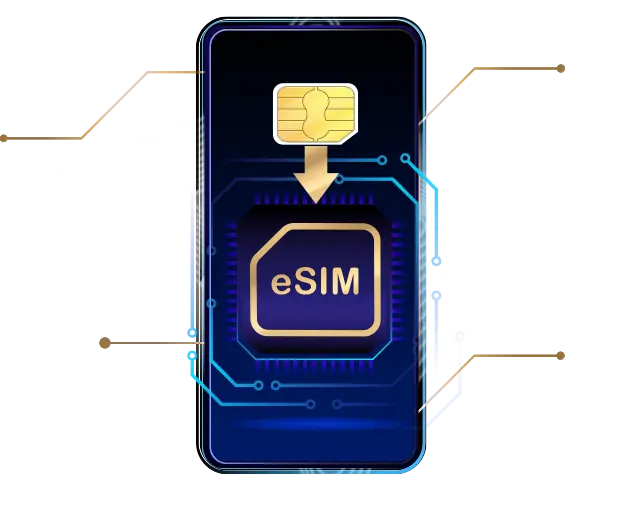
Requirements for Conversion:
- Ensure the device is running iOS/iPadOS 18.6.2 or a newer version.
- The device must be signed into an Apple Account.
- The current device is unlocked with the device passcode.
- Make sure the device is connected to a strong and stable Wi-Fi network.
Recommendation:
Before proceeding, back up all your contacts from the physical SIM (if applicable) to the device's phonebook and ensure that all your data is saved on iCloud.
^Once the conversion is complete, your physical SIM card will be deactivated immediately, and there is no need to keep it.
Conversion Tutorial
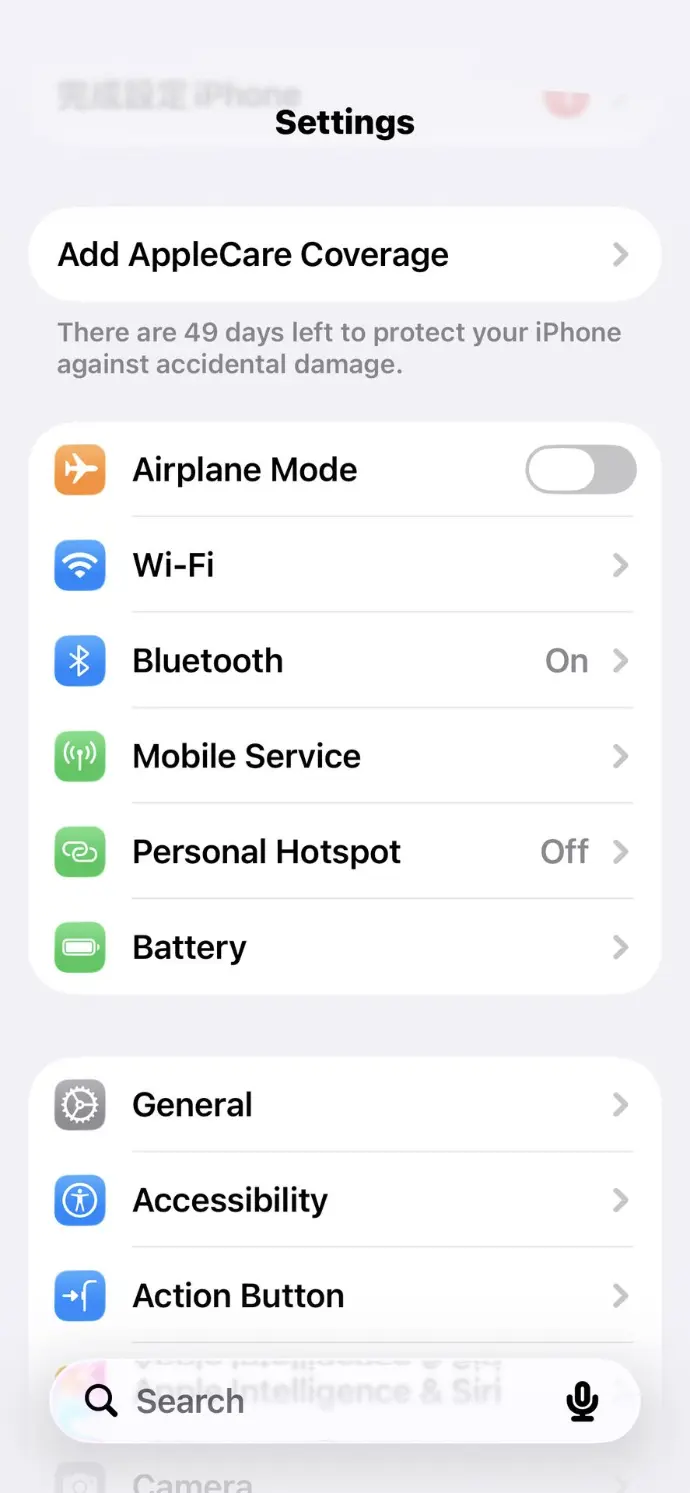
Go to the Settings menu on the iPhone that is ready to install the eSIM and select "Mobile Service"
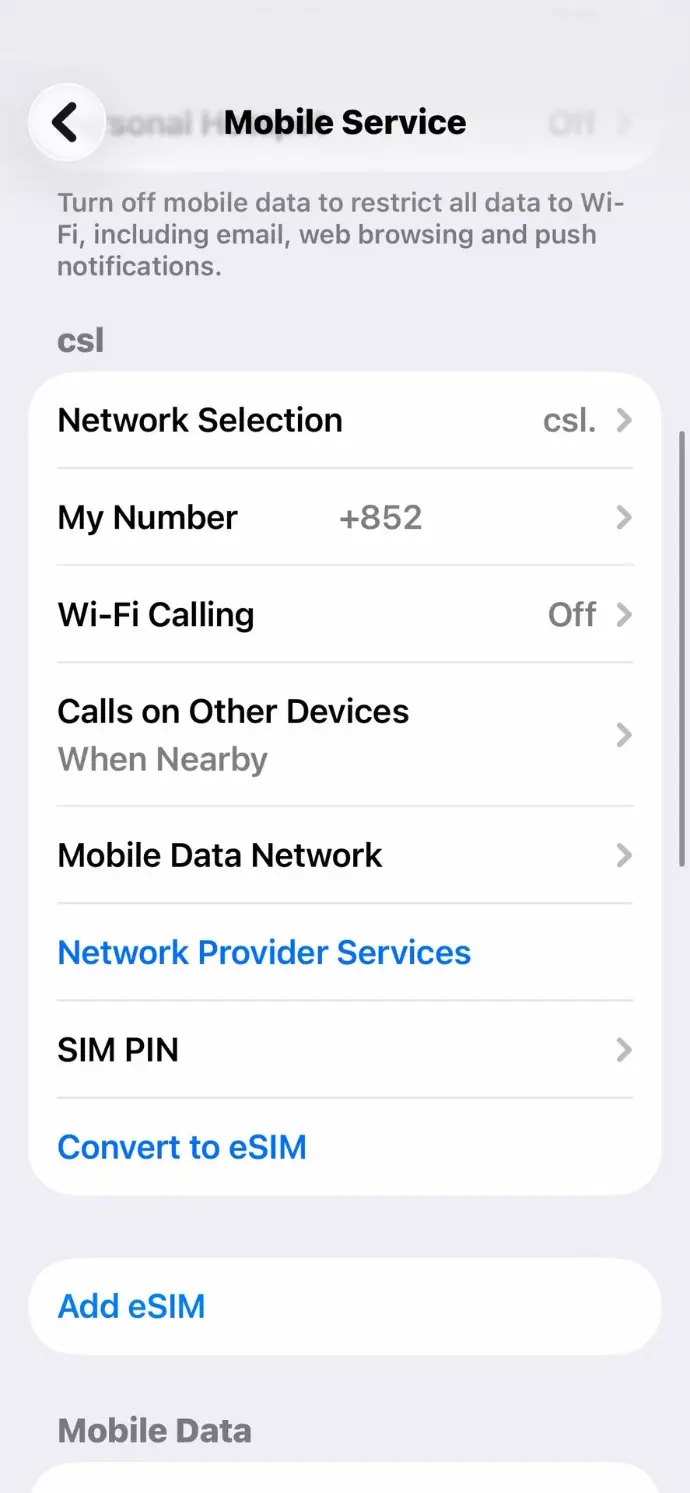
Select a valid physical SIM card and click "Convert to eSIM"
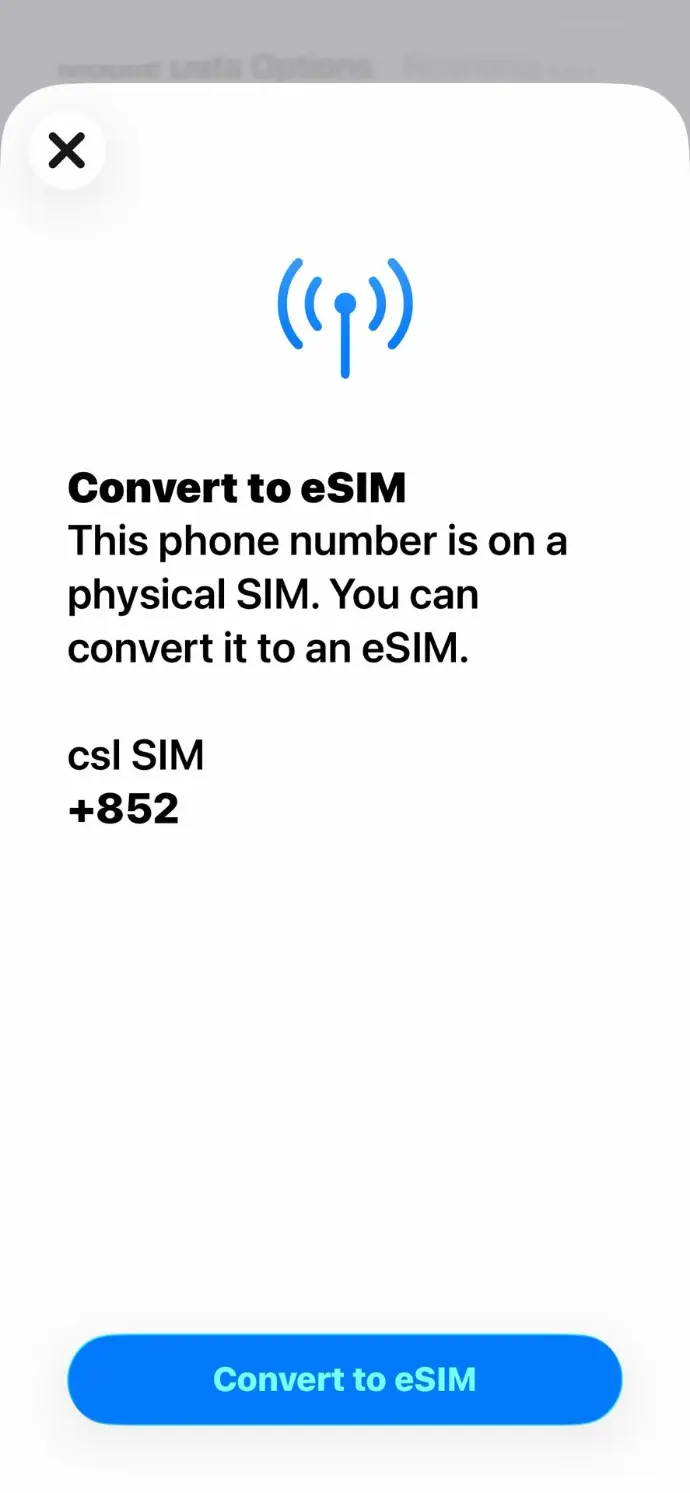
Click "Convert to eSIM"
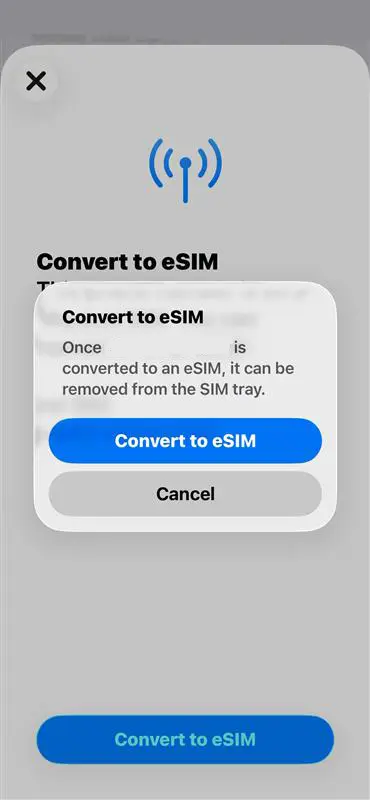
Click "Convert to eSIM" again to confirm
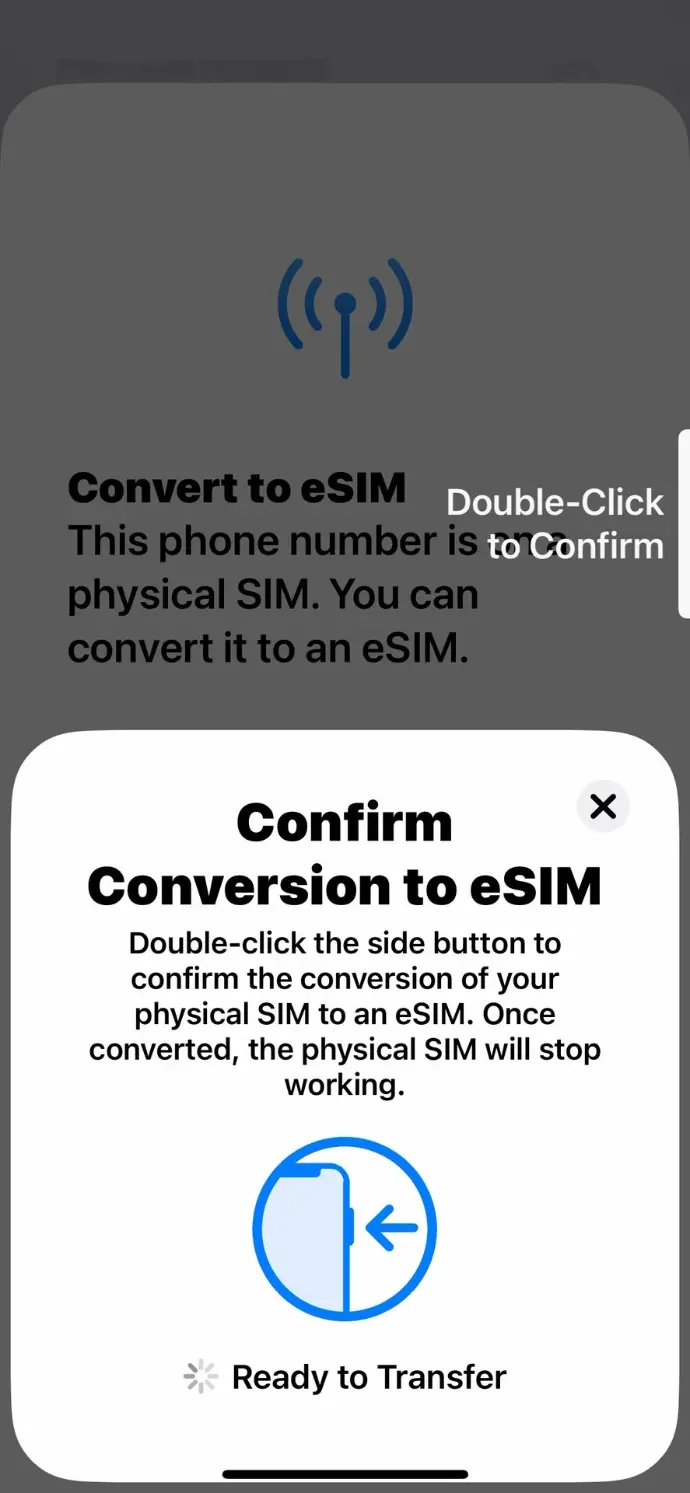
Double-click the side button to confirm the conversion to eSIM
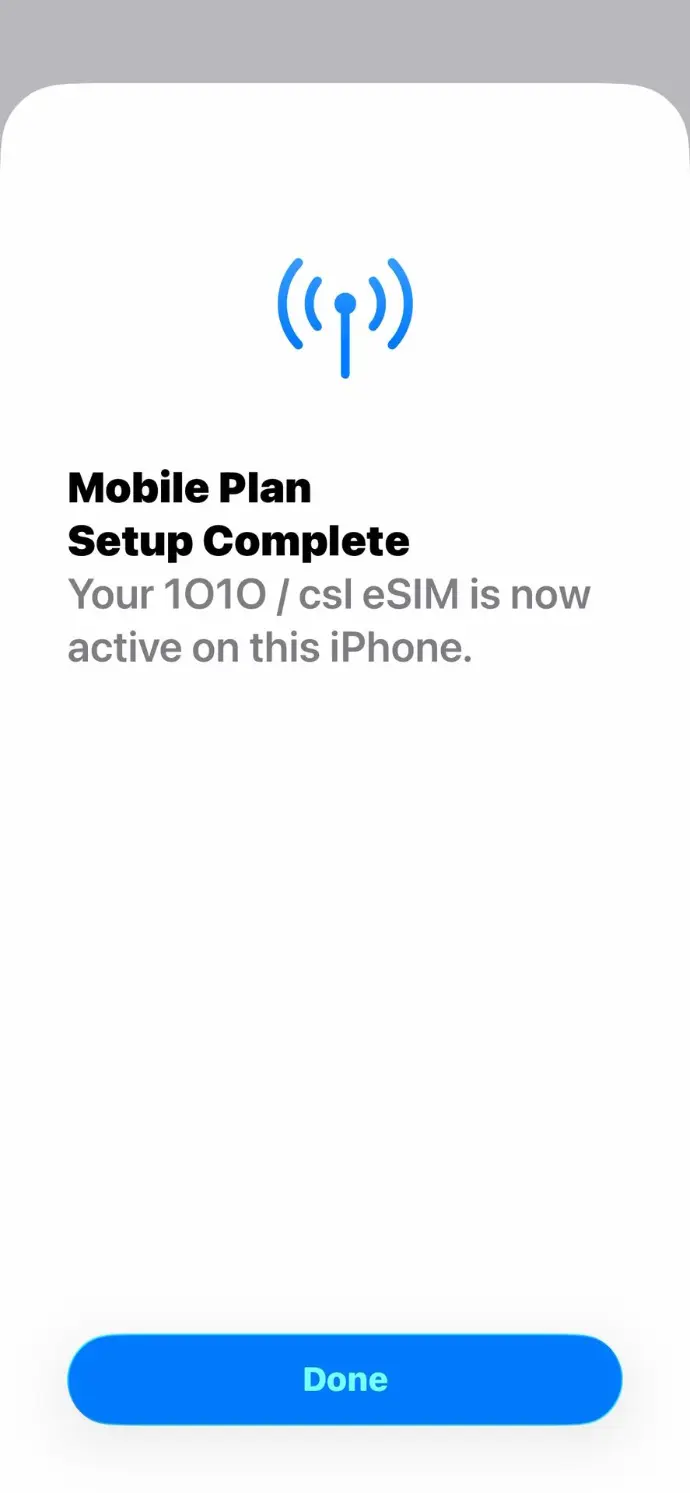
Click "Done" to finish the eSIM conversion after click "Agree" to accept terms and condition
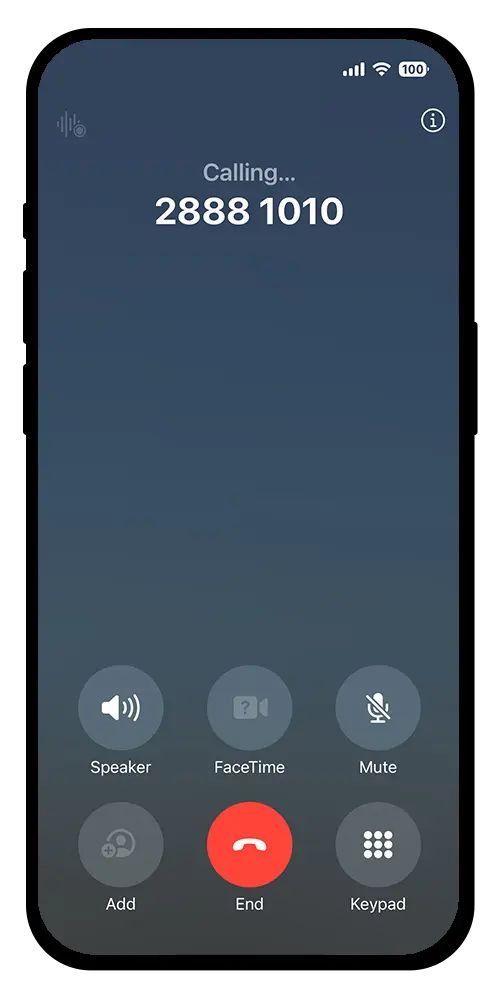
Test: Please use your iPhone to make a call via the new eSIM to verify the network connection
教學示範:
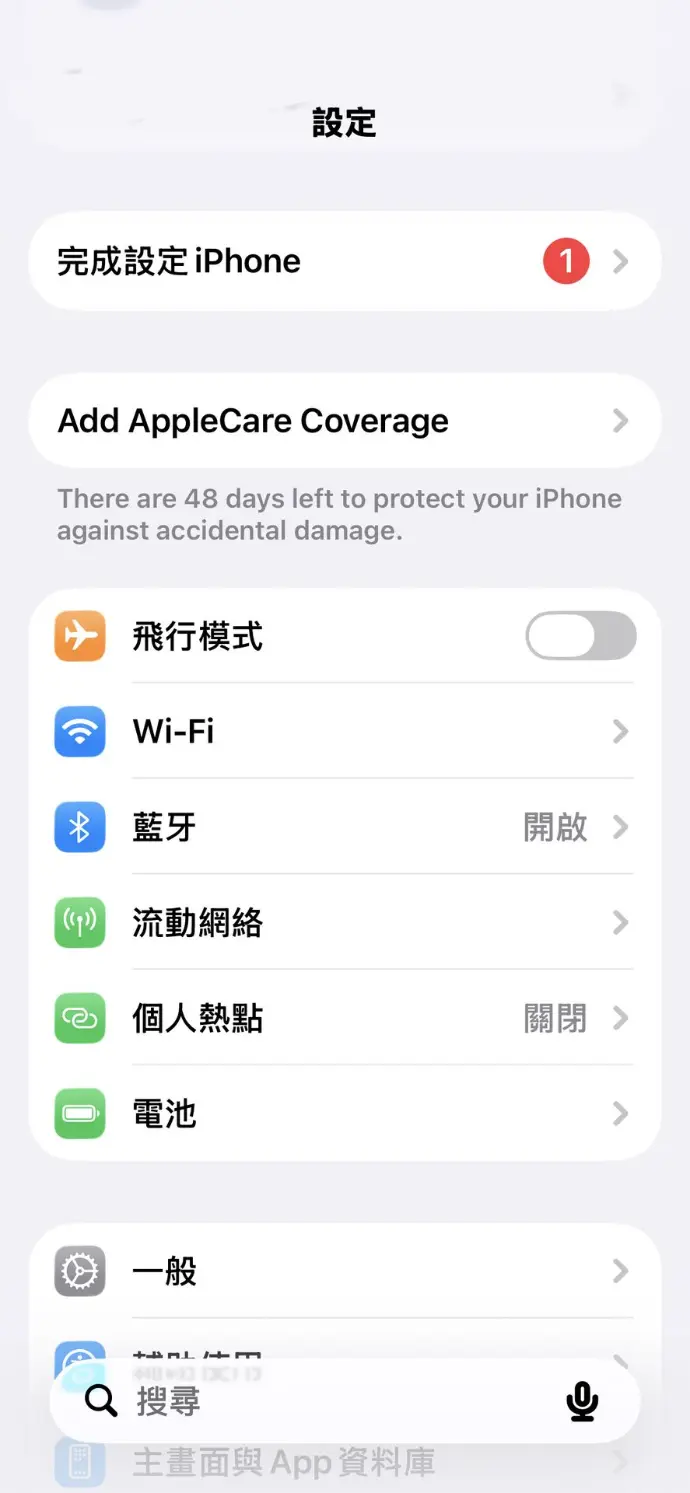
在您的iPhone上進入設定選單並點選 「流動網絡」
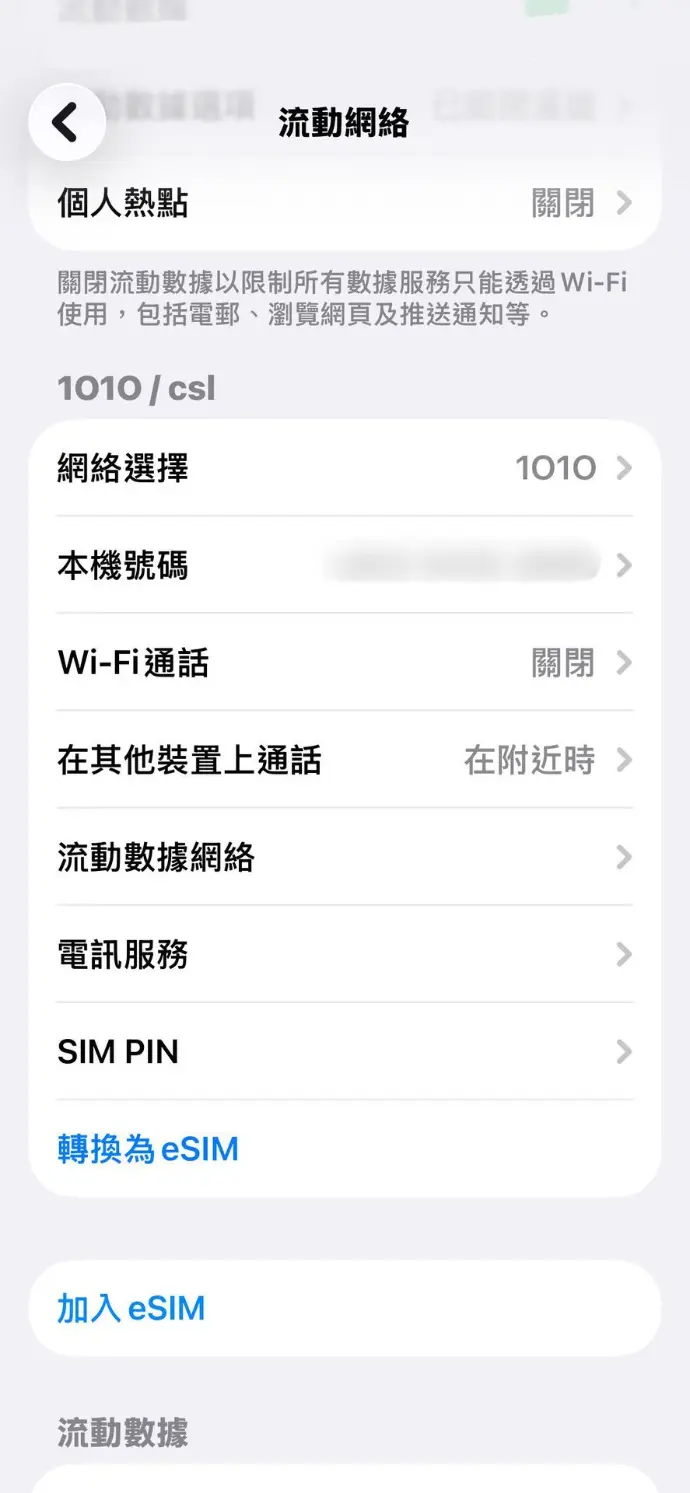
選擇一張有效的實體SIM卡並點選 「轉換為eSIM」
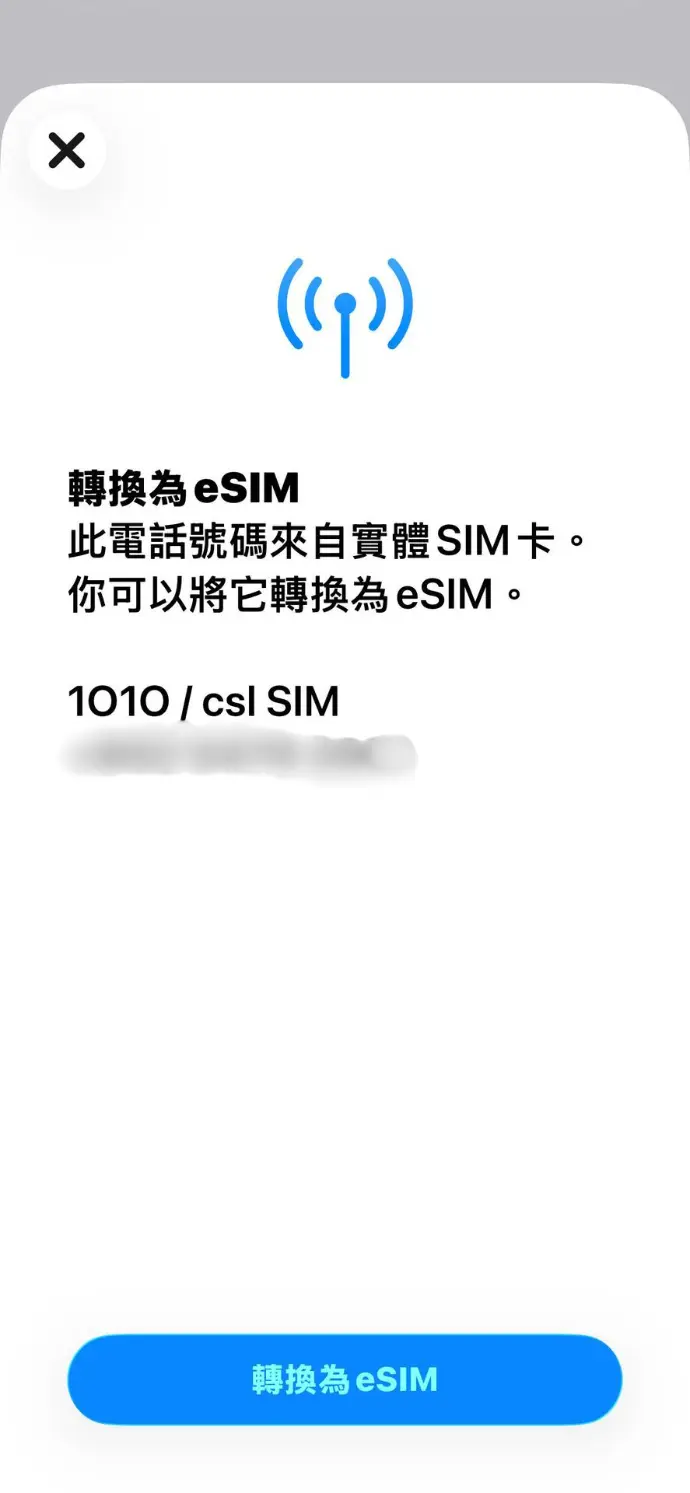
點選 「轉換為eSIM」
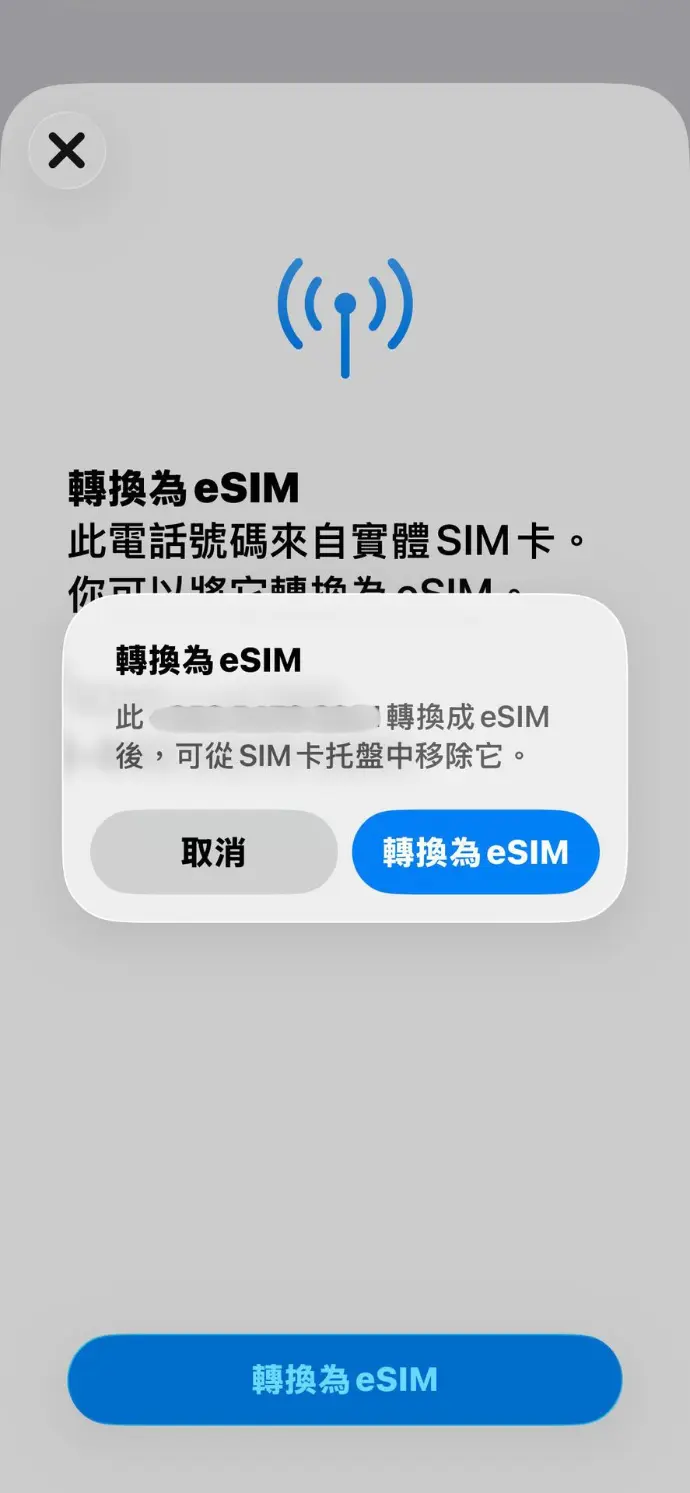
再次確認 「轉換為eSIM」
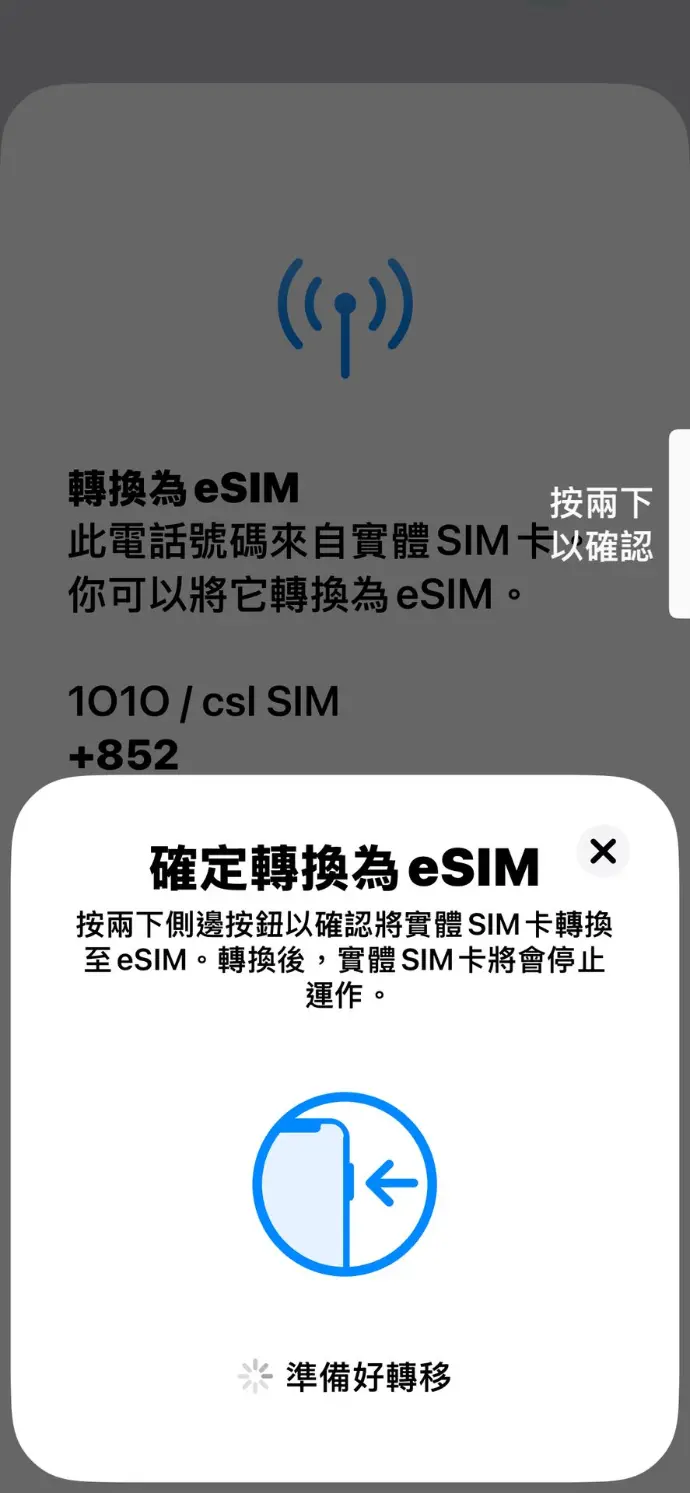
按兩下側邊按鈕以確認轉換為eSIM
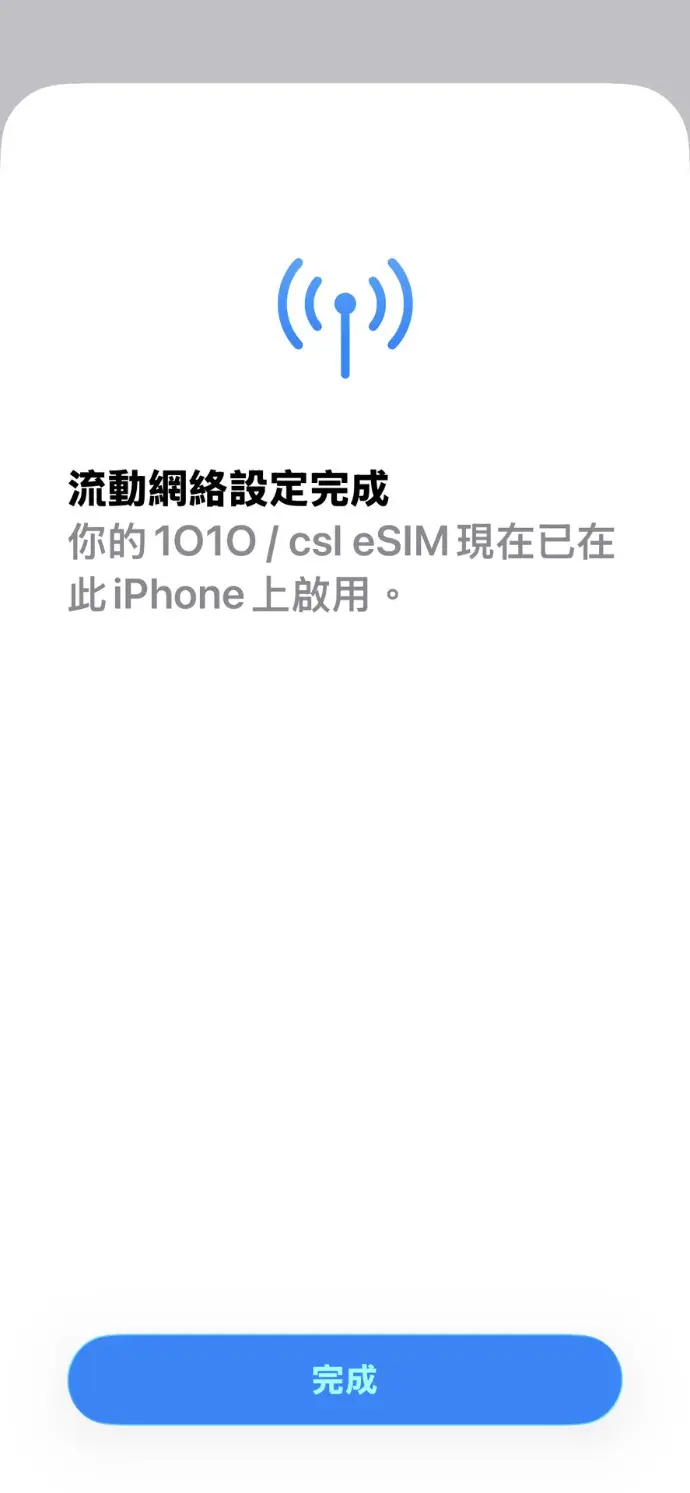
按 「同意」 接受條款及細則後,按 「完成」 即成功轉換eSIM
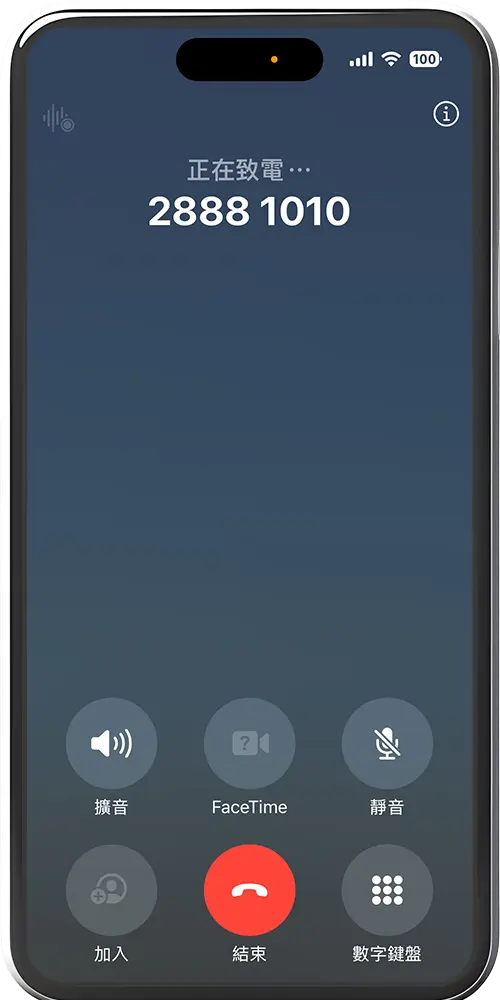
請使用您的 iPhone 透過全新 eSIM 撥打電話,以測試網絡連線
Note: The illustrations or instructions for the device screen and menu may vary depending on the device model and software version.
Note: The illustrations or instructions for the device screen and menu may vary depending on the device model and software version.
Frequently Asked Questions
An eSIM is a SIM card that is embedded in a mobile device. Without the traditional chip, eSIM can be used to make/receive a call, or access the internet.
An iPhone can store eight or more eSIM numbers.
When you convert to an eSIM, you're simply transitioning from a physical SIM card to an eSIM on your current device. On the other hand, transferring an eSIM involves moving either your physical SIM card or existing eSIM to an eSIM on a new device.
You must be a customer with designated 1O1O, csl or Club SIM service. However, csl or Club Sim prepaid card customers and commercial customers subscribed to selected business solutions are not eligible.
The following devices support this service:
iPhone
- iPhone XS
- iPhone SE (3rd generation or later model)
- SE (3rd generation or later model)
- iPhone 12 mini or iPhone 13 mini
- iPhone 16e
- iPhone Air
- iPhone 17 Series
iPad
- iPad Pro 12.9-inch (4th generation or later model)
- iPad Pro 11-inch (2nd generation or later model)
- iPad Air (4th generation or later model)
- iPad (10th generation)
- iPad mini (6th generation or later model)
If you are not using the above-mentioned supported devices, please go directly to any 1O1O Center or csl AI Store to apply for an eSIM.
All security features on the device should be enabled. Follow these steps:
- Log into iCloud on the iPhone (for both devices involved in the process).
- Activate Apple ID's Two-Factor Authentication.
- Enable Face ID or passcode lock.
- Register for iMessage.
Yes, it is essential for the current phone to stay close to the new phone during the eSIM transfer process. Once you have connected both devices to a strong and stable Wi-Fi network, keep the current phone within 1 meter of the new phone throughout the transfer. This proximity ensures a smooth and successful transaction.
No, you cannot use it. The system will deactivate the original SIM card immediately upon successful download of the eSIM to your new device.
No, your contacts will not be transferred automatically. It is recommended that you import your contacts from the SIM card to your phone's address book and back up the data on iCloud for safekeeping.
No, if you wish to revert back to a Physical SIM card, you will need to contact any 1O1O Center / csl AI Store for assistance.
Free Apple eSIM Quick Transfer Service Terms & Conditions (“the Offer”)
Free Apple eSIM Quick Transfer Service Terms & Conditions (“the Offer”):
- The Offer is valid from 8 September 2025 to 31 March 2026, both dates inclusive (“the Promotion Period”).
- The Offer is applicable to 1O1O, csl or Club Sim monthly service plan customers (“Customers”) who use a device that supports eSIM functionality. Commercial customers subscribed to selected business solutions is not eligible for the Offer.
- During the Promotion Period, Customers must self-initiate the eSIM quick transfer request through your eSIM supported iPhone or iPad (“Apple Device”) running iOS/iPadOS 18.6.2 or newer by Apple eSIM Quick Transfer (“the Service”). The Service enables you to convert a physical SIM card to an eSIM on same Apple Device or transfer an existing physical SIM card or eSIM from one Apple Device to another without service charge. For details, please visit https://1010.com.hk/en/esim_transfer or https://www.hkcsl.com/en/esim/quick-transfer.
- Subject to clause 3, you must have compatible Apple Devices as listed below in order to enjoy the Service. CSL reserves the right to revise the below list of compatible Apple Devices at any time without prior notice. For the latest update, please visit https://1010.com.hk/en/esim_transfer or https://www.hkcsl.com/en/esim/quick-transfer.
iPhone- iPhone SE (3rd generation or later model)
- iPhone 12 mini or iPhone 13 mini
- iPhone 16e
- iPhone Air
- iPhone 17 Series
- iPad Pro 12.9-inch (4rd generation or later model)
- iPad Pro 11-inch (2nd generation or later model)
- iPad Air (4th generation or later model)
- iPad (10th generation)
- iPad mini (6th generation or later model)
- The Offer is subject to availability while stocks last.
- Unless otherwise stated, the Offer cannot be used in conjunction with any other promotional or discount offer, and are non-transferable or exchangeable for cash or other products.
- The Offer is subject to further terms and conditions. For details, please visit https://www.1010.com.hk/en/esim or https://www.hkcsl.com/en/esim/.
- The General Terms and Conditions of CSL Mobile Limited (“CSL”) apply (https://www.hkcsl.com/en/service-terms-and-conditions/) to the relationship between CSL and you in respect of the mobile service.
- CSL reserves the right to vary or cancel the Offer and/or amend these Terms & Conditions at any time without notice.
- If there is any inconsistency between the Chinese and English versions of these terms and conditions, the English version shall prevail.